Motif Detection
Configure custom developability motifs, toggle canonical sequence features, and define multi-position engineering features across variable and constant domains.
Accessing the Tool
Go to the user profile navigation bar at the top right of the page, select the profile name/avatar, and select Motif Detection from the dropdown menu. This will open the Motif Detection editor screen.
Motif Detection Settings
Custom Motifs Table
Using the Tool
-
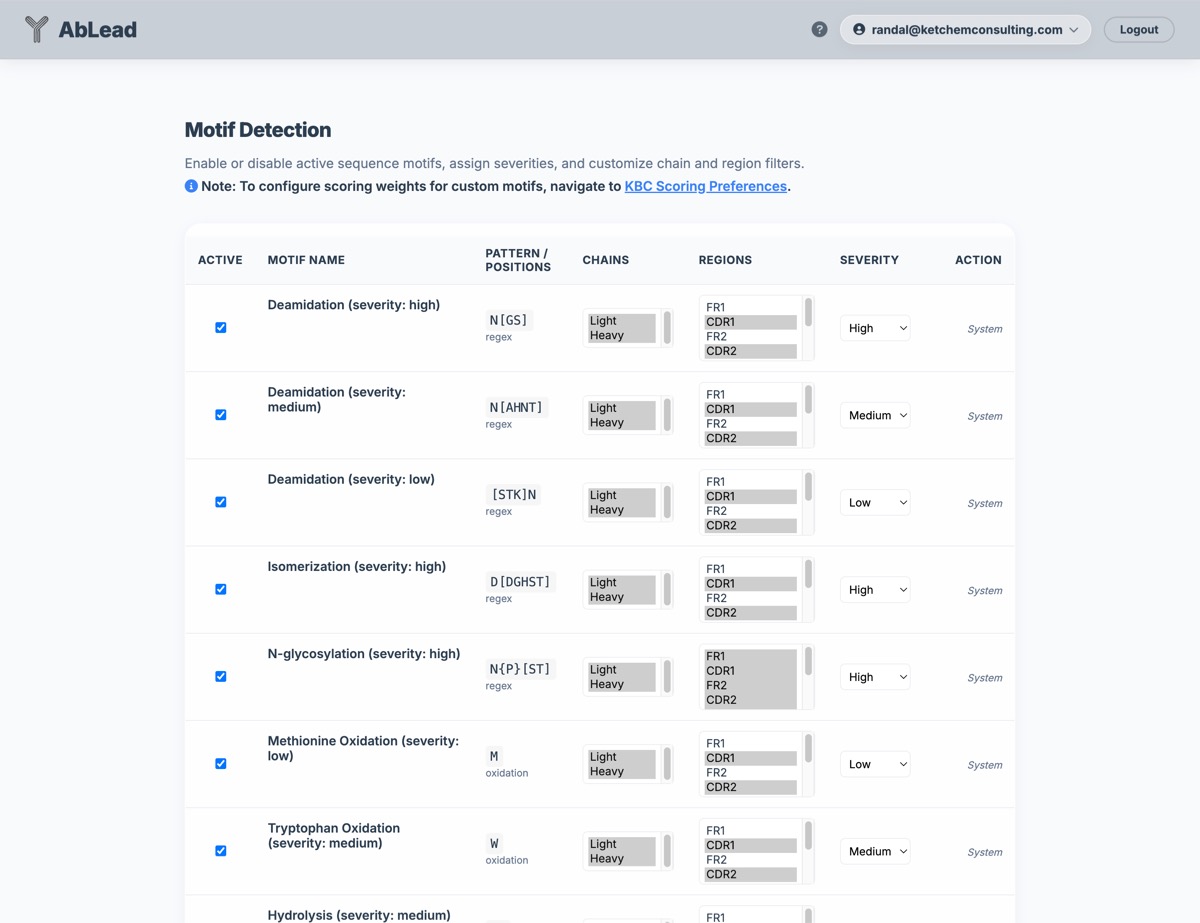
Canonical System Motifs: View and toggle the active state of standard developability liabilities (Deamidation, Isomerization, Oxidation, Cysteine Missing, etc.) which are pre-loaded in the platform.
-
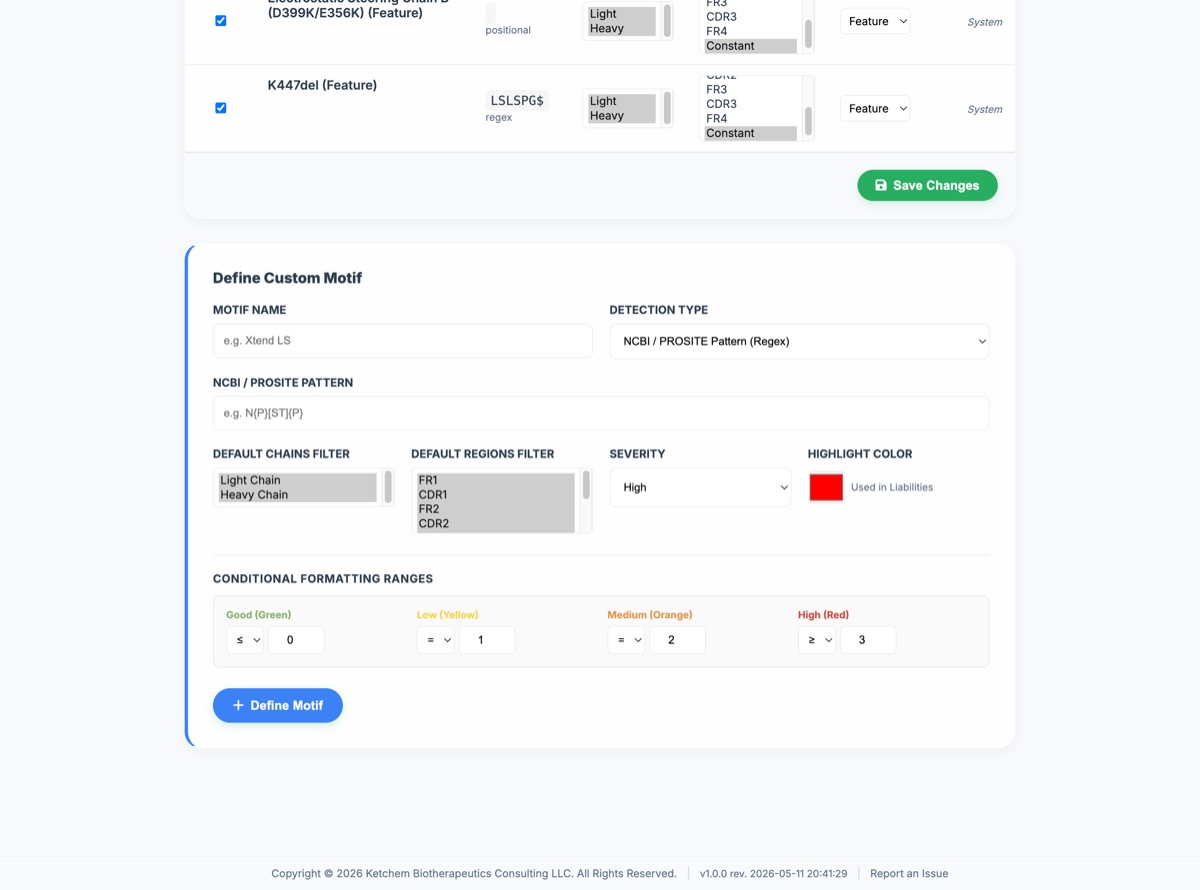
Creating Custom Motifs:
-
Nomenclature: Specify standard sequence motifs using PROSITE/NCBI regular expressions (e.g.,
N{P}[ST]{P}). -
Positional Conditions: Target specific sequence coordinate criteria across domains (e.g.,
CH3-CHS:88L, CH3-CHS:94S). Click + Add Position Entry to compile multi-residue conditions step-by-step. Use only the IMGT position integer (e.g.,88or94) as shown in the Alignment tool. -
Chains & Regions: Define which chains (Heavy, Light) and regions (FR1, CDR1, FR2, CDR2, FR3, CDR3, FR4, Constant, Hinge) the scanning engine is restricted to.
-
Highlight Color: Assign a custom background highlight color for each custom motif. This color is dynamically integrated across Liabilities tables, Molstar 3D structural highlights, Excel sheet exports, and PyMOL/SVL script exports.
-
Severity Levels: Assign a severity level (Low, Medium, High, or Feature) to the motif.
-
-
Unscored "Feature" Severe Level: Mark engineering variants (such as Fc effector silencing mutations like LALA/LALAPG, heterodimerization tags like KiH Knob/Hole, half-life extensions like LS/YTE, or IgG subclasses) with severity Feature. This ensures they are tracked as unscored constant region features without impacting the KBC Score. These features will bypass the main results grid columns and show up dynamically inside the Liabilities workspace.
-
Conditional Formatting Ranges: Define the operators and count values used to style cells in the results dashboard (Good, Low, Medium, High).
-
Scoring Weights: All scoring weights are centralized under KBC Scoring Preferences. New custom motifs default to a scoring weight of
0.0on creation. Custom motifs assigned non-zero penalty weights contribute to the "User Motifs" category in the Score Contribution Breakdown. -
Visual Grouping: The motif configuration list is split into two distinct visual sections: System Motifs & Features (standard pre-loaded platform liabilities and modifications) and User-Defined Custom Motifs (account-specific custom patterns).
-
Restoring System Defaults: Click Restore System Defaults at the top right of the page to reset all system-level motifs and features back to their factory settings. This resets any disabled states, modified severities, or customized chain/region filters you applied to the system motifs, while leaving all your custom user-defined motifs intact.